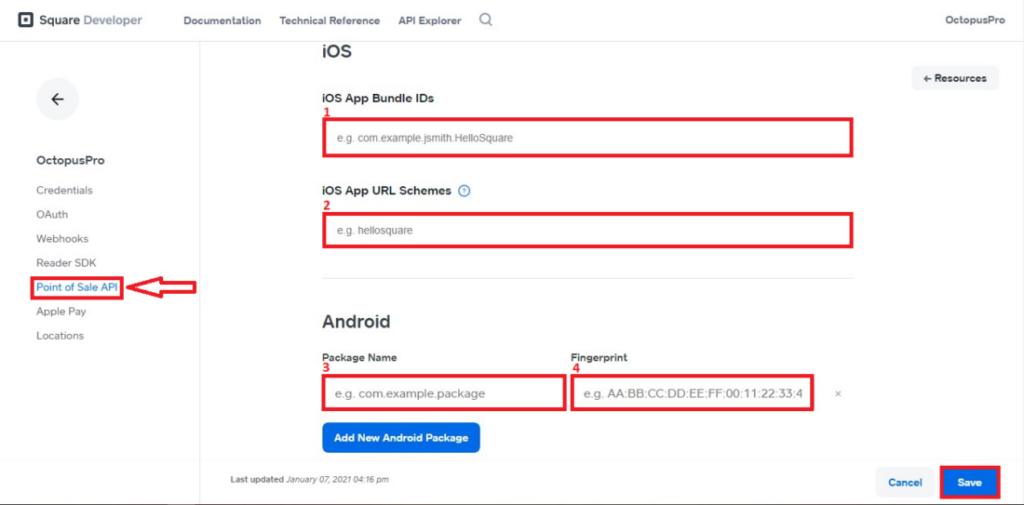
Square provides a robust and versatile API that allows businesses to seamlessly integrate their Point of Sale (POS) system with various third-party applications and services. With the Square API, developers can leverage the power of web services to create custom solutions tailored to their specific needs. This integration enables businesses to enhance their POS capabilities, streamline operations, and provide a more personalized customer experience. In this guide, we will explore how to effectively utilize the Square API for POS integration, emphasizing the importance of APIs and web services in driving innovation and efficiency within the retail and hospitality industries.
The Square API is a powerful tool that allows businesses to integrate Square’s payment processing capabilities into their applications. This can be especially useful for merchants seeking to enhance their Point of Sale (POS) systems. In this article, we will explore how to effectively leverage the Square API for POS integration, dive into key features, and provide step-by-step guidance on getting started.
Understanding the Square API
The Square API provides a range of functionalities that allow developers to build applications capable of processing payments, managing inventory, and handling customer data. The various APIs available cover all aspects necessary for a robust POS integration. Here are some key APIs you’ll want to familiarize yourself with:
- Payments API: Accept payments using Square’s secure infrastructure.
- Catalog API: Manage items, services, and inventory.
- Customers API: Create, manage, and track customer profiles.
- Orders API: Handle orders through the Square platform.
Setting Up Your Square Developer Account
Before you can start integrating the Square API, you’ll need to set up a Square developer account:
- Visit the Square Developer Portal.
- Sign in with your Square account or create a new account.
- Once logged in, navigate to the Dashboard.
- Click on Applications and then Create Application to begin the setup process.
After creating an application, you will receive a unique Application ID and Access Token, which are crucial for authentication when making API calls.
Integrating the Square API with Your POS System
Integration can be broken down into several key steps. Let’s go through them in detail:
1. Authenticating API Requests
To make requests to the Square API, you must authenticate each request using OAuth 2.0. Here’s how:
const accessToken = 'YOUR_ACCESS_TOKEN';

const headers = {
    'Authorization': 'Bearer ' + accessToken,
    'Content-Type': 'application/json',
};
Substitute YOUR_ACCESS_TOKEN with your actual access token. Every API call will include these headers for proper authentication.
2. Accepting Payments
To process payments through the Square API, you will primarily use the Payments API. Below is a step-by-step example:
const paymentData = {
    sourceId: 'nonce-from-square-form',
    amount: 1000, // The amount in cents
    currency: 'USD',
    // Optional parameters
    note: 'Payment for services rendered',
    // Add customer ID here if required
};

fetch('https://connect.squareup.com/v2/payments', {
    method: 'POST',
    headers: headers,
    body: JSON.stringify(paymentData),
})
.then(response => response.json())
.then(data => console.log(data))
.catch(error => console.error('Error:', error));
In the sourceId, you will use a nonce generated from Square’s payment form which securely transmits sensitive payment information.
3. Managing Inventory with the Catalog API
To keep track of your products, the Catalog API allows you to create and manage items:
const itemData = {
    idempotency_key: 'UNIQUE_STRING', // Unique key to prevent duplicates
    type: 'ITEM',
    item_data: {
        name: 'Sample Item',
        description: 'A description of the sample item',
        pricing_type: 'FIXED_PRICE',
        fixed_price: {
            amount: 1500, // Price in cents
            currency: 'USD',
        },
    },
};

fetch('https://connect.squareup.com/v2/catalog/object', {
    method: 'POST',
    headers: headers,
    body: JSON.stringify(itemData),
})
.then(response => response.json())
.then(data => console.log(data))
.catch(error => console.error('Error:', error));
4. Enhancing Customer Experience through the Customers API
Leveraging the Customers API can greatly enhance customer interactions:
const customerData = {
    given_name: 'Jane',
    family_name: 'Doe',
    email_address: 'jane.doe@example.com',
};

fetch('https://connect.squareup.com/v2/customers', {
    method: 'POST',
    headers: headers,
    body: JSON.stringify(customerData),
})
.then(response => response.json())
.then(data => console.log(data))
.catch(error => console.error('Error:', error));
Testing Your Integration
Before launching your integration, you should rigorously test all functionality:
- Use Square’s Sandbox environment to test your API calls.
- Simulate various payment scenarios such as successful transactions, failed payments, and refunds.
- Ensure that inventory management is accurate and responsive.
- Check that customer data is being stored and retrieved correctly.
Best Practices for Using the Square API
To maximize the efficiency and security of your Square API integration, consider the following best practices:
- Use HTTPS: Always make API calls over HTTPS to ensure data security.
- Implement Rate Limiting: Be aware of Square’s rate limits; build in handling for potential API call failures.
- Store Access Tokens Securely: Never expose your access tokens in client-facing code.
- Utilize Pagination: When retrieving data, especially with large datasets, implement pagination to manage response sizes.
Monitoring and Analytics
Once your Square API integration is live, monitor its performance and gather insights:
- Use Square’s Dashboard to track sales, customer interactions, and inventory.
- Implement logging for API calls to help diagnose issues.
- Review logs regularly to adapt and improve your POS system.
Common Issues and Troubleshooting
Integrating APIs can sometimes result in challenges. Here are some common issues and troubleshooting tips:
- Authentication Errors: Verify that your access tokens are active and correctly set up in the headers.
- Invalid Request Body: Ensure your request body is formatted correctly based on the API documentation.
- Rate Limiting: If receiving 429 responses, you may have hit the rate limit; implement a back-off strategy.
With proper testing and understanding of the Square API, you can create a seamless and efficient POS experience that enhances customer satisfaction and drives sales.
Integrating the Square API for POS offers a seamless solution for businesses to enhance their Point of Sale operations. By leveraging the power of APIs and web services, organizations can streamline transactions, maximize efficiency, and provide a superior payment experience for their customers. Through effective utilization of the Square API, businesses can unlock new opportunities for growth and innovation in today’s digital marketplace.
Related posts:
 What Are APIs and How Do They Work?
 How to Secure Your API with JWT
 Building a Microservices Architecture with APIs
What Are API Keys and How to Use Them Securely?
Building a Microservices Architecture with APIs
What Are API Keys and How to Use Them Securely?
 A Beginner’s Guide to API Monetization
 Using Google Maps API for Location-Based Applications
 How to Handle API Authentication in Mobile Apps
The Importance of API Caching and How to Implement It
How to Handle API Authentication in Mobile Apps
The Importance of API Caching and How to Implement It
 Building a Weather App Using OpenWeather API
 How to Use AI-Powered APIs for Your Applications
 API Gateway vs Load Balancer: Understanding the Differences
How to Set Up API Rate Limiting in Nginx
API Gateway vs Load Balancer: Understanding the Differences
How to Set Up API Rate Limiting in Nginx
 How to Optimize API Response Time for Better Performance
Best API Security Practices to Prevent Attacks
How to Optimize API Response Time for Better Performance
Best API Security Practices to Prevent Attacks