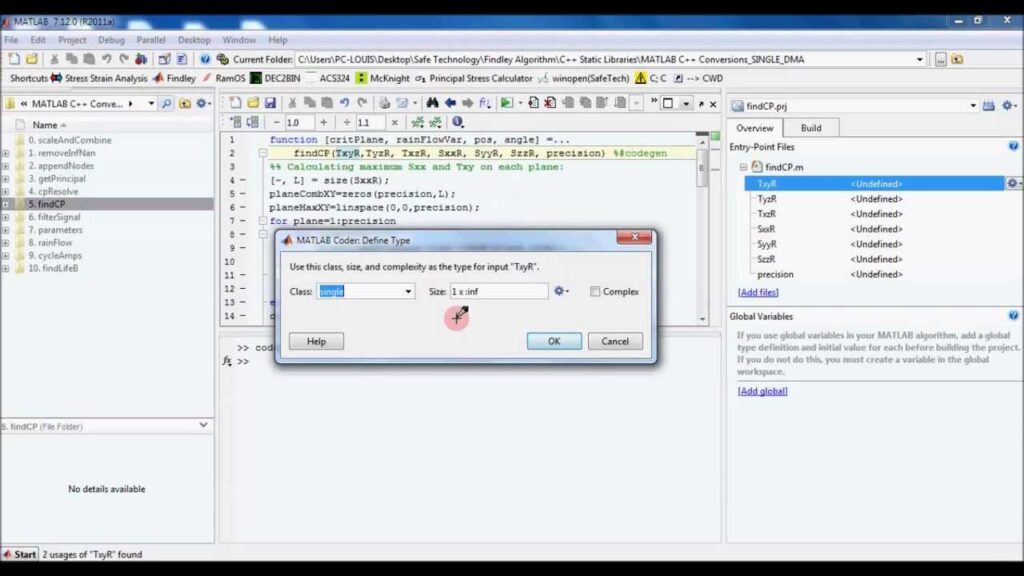
MATLAB, a powerful technical computing software, has the capability to interact with external libraries and executables written in C++. By utilizing MATLAB’s MEX interface, developers can easily call and execute C++ code within MATLAB, allowing for seamless integration of C++ functionalities with MATLAB’s computational capabilities.
Calling C++ code from MATLAB: MATLAB is a popular programming language and environment used for data analysis, numerical computation, and algorithm development. While MATLAB provides a wide range of built-in functions and tools, there may be situations where you need to leverage specific C++ code in your MATLAB projects. Fortunately, MATLAB allows you to call C++ code seamlessly, enabling you to integrate the power of C++ with the convenience of MATLAB.
Integrating C++ with MATLAB
To integrate C++ code with MATLAB, you can use the MATLAB C++ Interface. This interface, commonly known as MATLAB Engine API for C++, allows you to call C++ functions from within MATLAB and exchange data between MATLAB and C++ seamlessly.
Using the MATLAB C++ Interface gives you the ability to use functionality from existing C++ libraries and frameworks in your MATLAB code. It provides a bridge between MATLAB and C++, facilitating the development of high-performance applications with the flexibility and ease of use of MATLAB.
Running C++ functions in MATLAB
The process of running C++ functions in MATLAB involves several steps:
- Compiling your C++ code into a shared library or DLL that MATLAB can load.
- Creating a MATLAB MEX-file that acts as a wrapper for your C++ code.
- Loading the compiled shared library or DLL into MATLAB.
- Calling the C++ functions from MATLAB using the MEX-interface.
By following these steps, you can seamlessly integrate and execute C++ functions within MATLAB.
How MATLAB interacts with C++
When you call a C++ function from MATLAB, MATLAB creates a MATLAB data array to represent the input arguments and passes it to the C++ function. The C++ function processes the data and returns the results, which MATLAB accepts as a new MATLAB data array.
The MATLAB C++ Interface automatically handles the conversion of compatible data types between MATLAB and C++. It also provides a mechanism to handle any errors or exceptions that occur during the execution of the C++ code.
Using MATLAB for C++ development
In addition to calling C++ code from MATLAB, you can also use MATLAB as a development environment for C++. MATLAB provides a powerful IDE (Integrated Development Environment) that offers features like code debugging, profiling, and performance optimization tools to aid in C++ development.
With MATLAB, you can write, test, and debug your C++ code within the same environment you use for MATLAB programming. This eliminates the need for switching between different development environments and allows for a seamless workflow.
Furthermore, MATLAB provides built-in support for various development workflows, including creating C++ classes and libraries, generating C++ code from MATLAB code, and integrating external C++ libraries into your projects.
Using MATLAB for C++ development can streamline your workflow, improve productivity, and take advantage of MATLAB’s extensive capabilities.
In summary, MATLAB can indeed call C++ code and seamlessly integrate it with MATLAB projects. The MATLAB C++ Interface provides a convenient way to run C++ functions in MATLAB, enabling you to leverage existing C++ code libraries or develop new functionalities in C++ while benefiting from the extensive capabilities of MATLAB. Whether you need to call C++ code from MATLAB or use MATLAB as a development environment for C++, MATLAB offers a comprehensive solution for your needs.
MATLAB has the capability to call C++ functions through the use of MEX files, allowing for seamless integration of C++ code within MATLAB scripts. This feature enables users to leverage the strengths of both programming languages to enhance their computational workflows and tackle diverse problems efficiently.
Related posts:
 What is the MATLAB used for?
 Is MATLAB similar to Python?
 Is MATLAB written in C or C++?
 Can MATLAB use Python?
 Is MATLAB free to use?
 Is MATLAB difficult to learn?
Should I learn Python or MATLAB?
Can Python fully replace MATLAB?
Is MATLAB difficult to learn?
Should I learn Python or MATLAB?
Can Python fully replace MATLAB?
 Why is MATLAB still used?
What language is close to MATLAB?
Does MATLAB count as coding?
Why is MATLAB still used?
What language is close to MATLAB?
Does MATLAB count as coding?
 How long does it take to learn MATLAB?
 Why do engineers use MATLAB instead of Python?
 What is better than MATLAB?