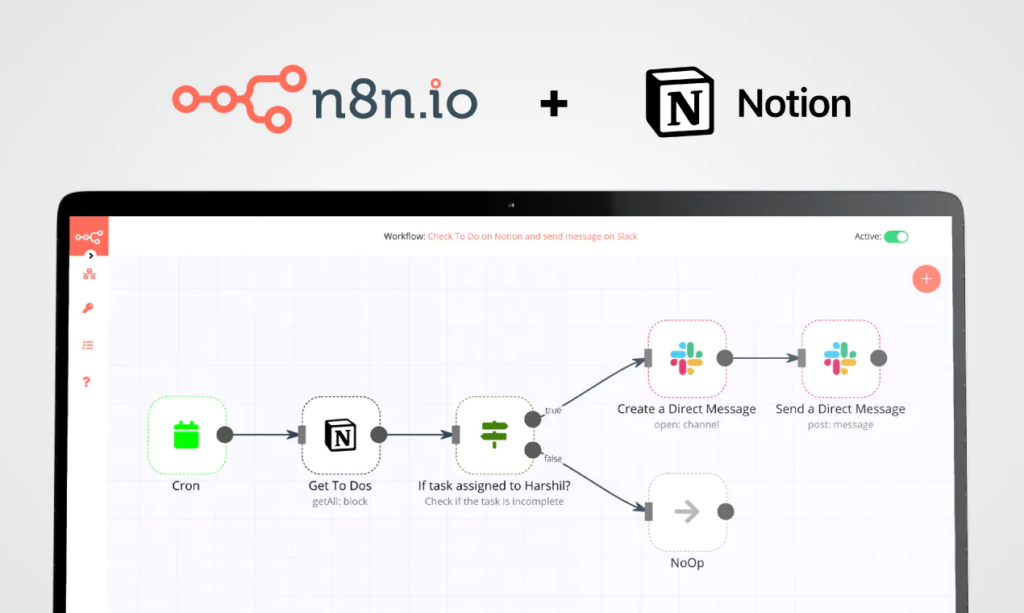
The Notion API provides developers with the ability to interact programmatically with Notion data, enabling automation and integration with external services. In the realm of task management, leveraging the Notion API can streamline workflows and enhance productivity by syncing tasks, deadlines, and updates seamlessly across different platforms. With the power of APIs and Web Services, developers can create custom integrations that automate repetitive tasks, extract valuable insights, and improve collaboration within the task management ecosystem. This introduction serves as a gateway to explore the endless possibilities that the Notion API offers for optimizing task management processes through intelligent automation and data synchronization.
Understanding the Notion API
The Notion API provides a powerful way to interact programmatically with the Notion database. This RESTful API allows developers to automate interactions with Notion databases, pages, and blocks. With the ability to create, read, update, and delete content, the Notion API is ideal for streamlining task management processes.
Before diving into automation, it’s crucial to understand the key concepts of the Notion API:
- Databases: Collections of pages that can hold information.
- Pages: Individual content units, which can be structured and linked.
- Blocks: The individual components that make up a page, such as text, headings, lists, and more.
Getting Started with the Notion API
To begin using the Notion API, follow these essential steps:
1. Creating a Notion Integration
Head over to the Notion Developer Portal and create a new integration. Note the integration token, as it will be required for authentication when making API requests.
2. Share Your Database with the Integration
After creating your integration, you must share your Notion database with it. Navigate to your database in Notion, click on the “Share” button, and select your integration to grant it access.
3. Setting Up Your Development Environment
Choose your programming language and set up the necessary libraries for making HTTP requests (e.g., axios for JavaScript or requests for Python). Make sure to install any required dependencies:
npm install axiospip install requestsAuthentication with the Notion API
To authenticate your requests, include your integration token in the header of your API calls. Here is an example using Node.js with Axios:
const axios = require('axios');

const notionAPI = axios.create({
    baseURL: 'https://api.notion.com/v1/',
    headers: {
        'Authorization': 'Bearer YOUR_INTEGRATION_TOKEN',
        'Content-Type': 'application/json',
        'Notion-Version': '2021-05-13',
    },
});
Using the Notion API for Task Management Automation
1. Creating Tasks in Notion
You can automate task creation by sending a POST request to the Notion API. Here’s how to create a task:
async function createTask(databaseId, taskName) {
    const response = await notionAPI.post('pages', {
        parent: { database_id: databaseId },
        properties: {
            Name: {
                title: [
                    {
                        text: {
                            content: taskName,
                        },
                    },
                ],
            },
            Status: {
                select: {
                    name: 'Not Started',
                },
            },
        },
    });
    return response.data;
}
In this code, you need to replace databaseId with the ID of your Notion database. The Name and Status properties are defined according to your Notion database schema.
2. Updating Tasks in Notion
To update existing tasks, you’ll need the page ID of the task you want to edit:
async function updateTask(pageId, updatedProperties) {
    const response = await notionAPI.patch(`pages/${pageId}`, {
        properties: updatedProperties,
    });
    return response.data;
}
In this function, the updatedProperties parameter should contain the properties you wish to modify.
3. Retrieving Tasks from Notion
If you want to retrieve tasks from your Notion database, send a GET request using the following code:
async function getTasks(databaseId) {
    const response = await notionAPI.post('databases/' + databaseId + '/query');
    return response.data.results;
}
This function will return an array of tasks stored in the specified database. You can further filter results according to your needs.
4. Deleting Tasks in Notion
The Notion API allows you to delete tasks as well. Here’s how to do it:
async function deleteTask(pageId) {
    const response = await notionAPI.delete(`pages/${pageId}`);
    return response.status === 204; // Successfully deleted
}
Integrating Automation with Other APIs
One of the greatest strengths of using the Notion API is its ability to integrate with other APIs for enhanced functionality. You can use tools like Zapier or Make (Integromat) to connect Notion with other applications.
1. Automate Task Creation from Email
Using services like Zapier, you can create a trigger that automatically adds a task to your Notion database whenever you receive an email in a specific folder. This can be particularly useful for teams managing customer requests or support tickets.
2. Syncing with Project Management Tools
If you use project management tools like Trello or Asana, you can set up automations to sync tasks between these platforms and Notion. For example, every time a task is marked as completed in Trello, it can be automatically updated in your Notion database.
3. Scheduling Automations with Cron Jobs
For tasks that need automation on a schedule, use cron jobs in combination with the Notion API. This could involve daily task retrieval and notifications, ensuring you stay current with your action items.
0 9 * * * node /path/to/your/script.jsThis cron job will run your Node.js script daily at 9 AM.
Best Practices for Using the Notion API
To ensure your task management automation runs smoothly, consider the following best practices:
- API Rate Limits: Be aware of the Notion API rate limits to avoid being throttled.
- Error Handling: Implement robust error handling to manage issues such as failed requests or timeouts.
- Versioning: Always specify the Notion version in your API requests to ensure compatibility.
Conclusion
Using the Notion API for task management automation opens up a world of possibilities for streamlining your workflow. From creating and updating tasks to integrating with other services, the Notion API is an essential tool for developers looking to enhance productivity.
By understanding how to use the Notion API, you can craft custom automations tailored to your unique task management needs.
Leveraging the Notion API for task management automation can greatly enhance productivity and efficiency by integrating Notion with other tools and services. By harnessing the power of APIs and web services, users can streamline workflows, automate repetitive tasks, and create a seamless experience across various platforms. Embracing the Notion API opens up a world of possibilities for optimizing task management processes and enhancing overall productivity.
Related posts:
 How to Build a Serverless API with AWS Lambda and API Gateway
 How to Build an API That Supports GraphQL Mutations
 What Is an API SDK and How Does It Differ from an API?
 How to Build an API That Supports Real-Time Streaming
 How to Set Up a Reverse Proxy for API Security
How to Implement API Request Logging with Morgan in Express.js
The Best API Response Formats: JSON, XML, Protobuf, and More
What Are API Middleware Functions and How to Use Them?
How to Build a Payment Gateway API with Stripe and Node.js
How to Implement API Rate Limits for Subscription-Based Pricing
How to Set Up a Reverse Proxy for API Security
How to Implement API Request Logging with Morgan in Express.js
The Best API Response Formats: JSON, XML, Protobuf, and More
What Are API Middleware Functions and How to Use Them?
How to Build a Payment Gateway API with Stripe and Node.js
How to Implement API Rate Limits for Subscription-Based Pricing
 How to Build an API with Hapi.js in Node.js
 How to Use AI-Based API Analytics for Performance Monitoring
 How to Optimize API Response Times with Lazy Loading
 How to Integrate the Telegram Bot API for Automated Messaging